


1. Home
The Coordinator module will only be accessible to Full Time staff and student coordinators. Student Summer clerks will not have access to this module. The Coordinator module is comprised of widgets and the action bar.

Widgets

Action Bar
Widgets
These graphical widgets display a multitude of different bits of information. Some widgets reflect how many conference guests are checking - in on said date, other widgets display upcoming events taking place [Meetings] and some widgets display the most recently submitted desk log entries.
These widgets are meant to provide effective at-a-glance insights to valuable conference information.
Action Bar
The action bar allows you into the backend of Iris to effectively make edits to a conference participant's profile, a conference group's profile or a subgroup's profile.
To view where the conference itinerary pulls its information from, select the "Search" field in the action bar. Type in the name of the conference group. Select the respective group.

The prompted page is where all conference information is consolidated from. This page reflects the most up to date information for the conference group and its information. The conference information is displayed as a home view to the right side of the page and to the left, you may find specific fields to make edits in.
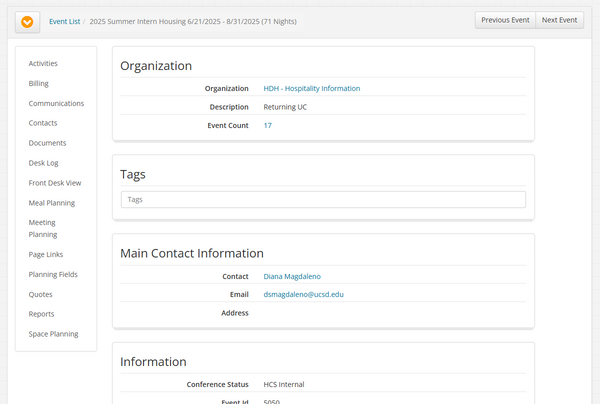
To view specifically where the itinerary pulls its information from, locate "Planning Fields" the left side of the page.

From here, you can view a refined list of the pre-itinerary.

**DO NOT MAKE EDITS TO THE
PLANNING FIELDS WITHOUT THE
CONSENT/APPROVAL OF AN FTE.**
3. Itinerary
To pull the itinerary, navigate the side bar and locate "Reports".
From here, locate "Conference Itinerary for Client Review/Approval".

Select the action player button.

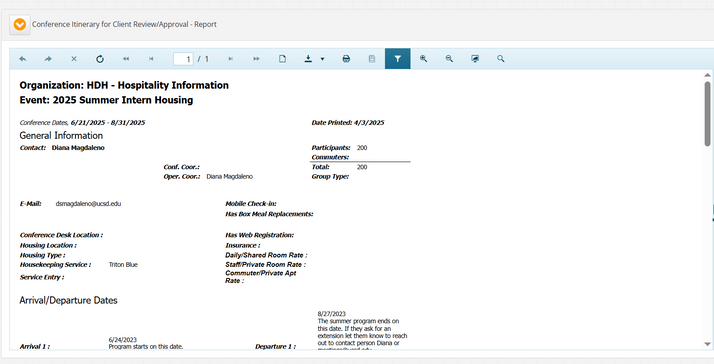
Navigate to the right side of the page. Select the appropriate field. Once you have selected the fields of your choice, the itinerary will begin to populate. Refresh your page if the page does not begin to populate on its own.
To download the page select the drop down arrow displayed above in green. Do print the page directly from Iris, select the printer icon displayed above in red.
To pull any reports, start from the home screen in the coordinator module.
Navigate the top action bar and select "Reports".
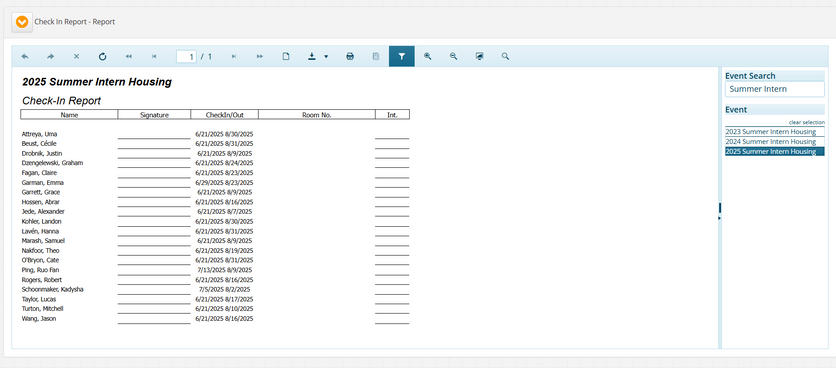
After selecting reports, you may populate any of the following reports as coordinators:
-
Check In Report
-
Check Out Report
-
Conference Arrival List
-
Conference List
After having selected which report you wish to populate, utilize the "Event Search" field to search for the conference group you wish to populate the report for.
To download the page select the drop down arrow displayed above in green. Do print the page directly from Iris, select the printer icon displayed above in red.
To view any recent client - coordinator communications, from the home page of the coordinator module, navigate the activity bar and select "Communications".

From here, you may view the most recent communication emails between the client and their assigned full time staff coordinator.
2. Edits
4. Reports
5. Communications